Client Tokens are secure, app-specific credentials used exclusively for email client connections (IMAP and SMTP). They serve as an authentication layer that separates your account password from third-party email applications.
In other words, using your main account password for email clients will NOT work. You MUST create and use Client Tokens for any email client configuration.
| Credential Type | Purpose | Works For Mail Clients |
|---|---|---|
| Account Password | Web interface login, account management | ❌ IMAP/SMTP clients |
| Client Token | Email client authentication only | ✅ IMAP/SMTP clients |
Using a Client Token instead of your account password provides enhanced security, allowing you to:
- Keep your main account password private and secure
- Revoke access for specific devices without affecting others
- Prevent unauthorized access if a device is lost or compromised
- Audit and manage clients accessing your email
How to Create Client Tokens
-
Sign in to TinkMail at https://tinkmail.me/sign-in
-
Access Settings: Click on your profile or navigate to Settings > Client Tokens or access directly at https://tinkmail.me/home/settings/client-tokens
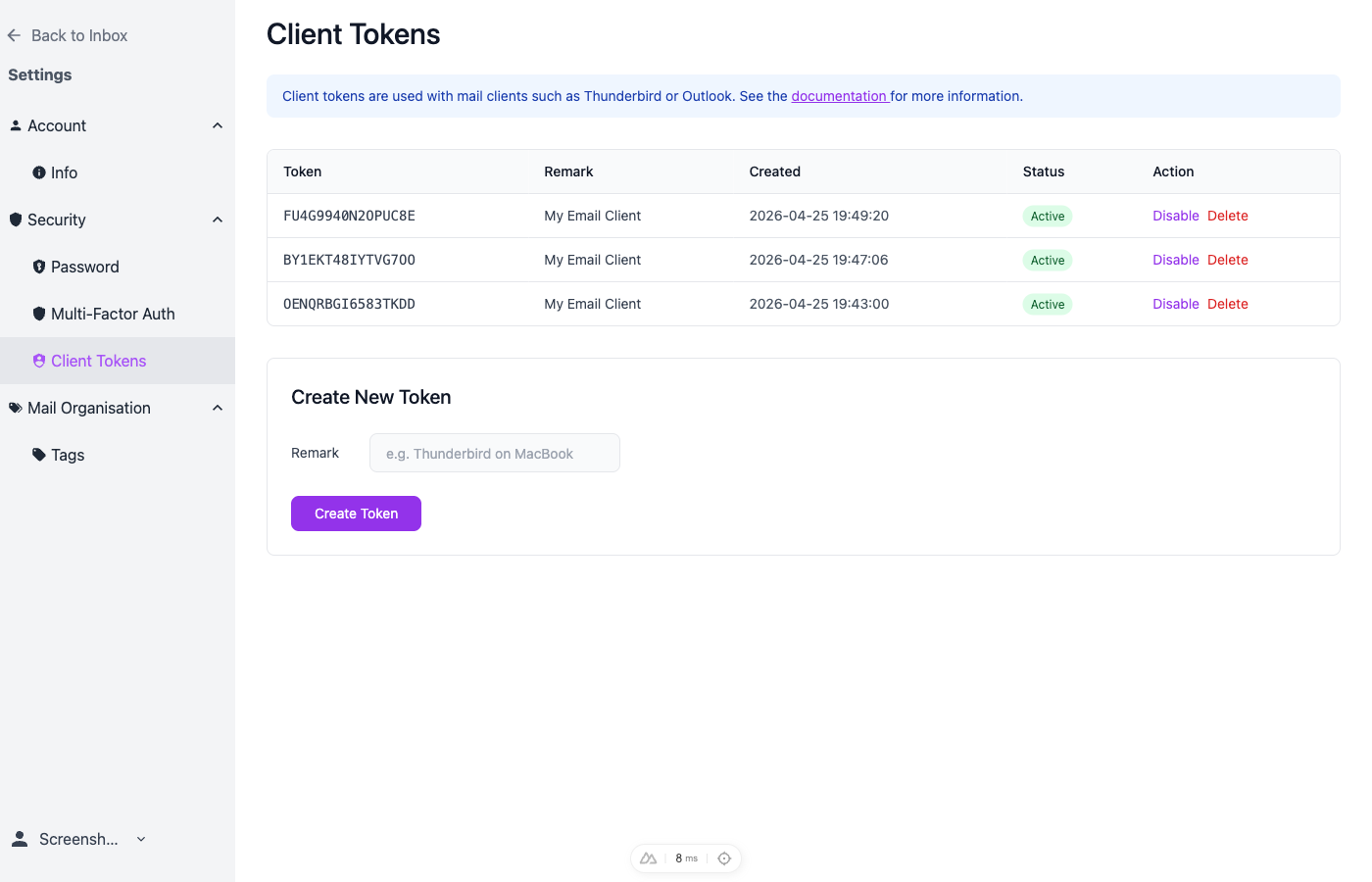 Screenshot: Personal account Client Tokens page showing existing tokens and the Create Token form
 -
Create New Token:
- Enter a descriptive name that helps you identify where this token will be used:
- Good examples: “MacBook Pro Office”, “iPhone 15 Personal”, “Outlook Desktop Home”
- Avoid: “Token1”, “test”, “my token”
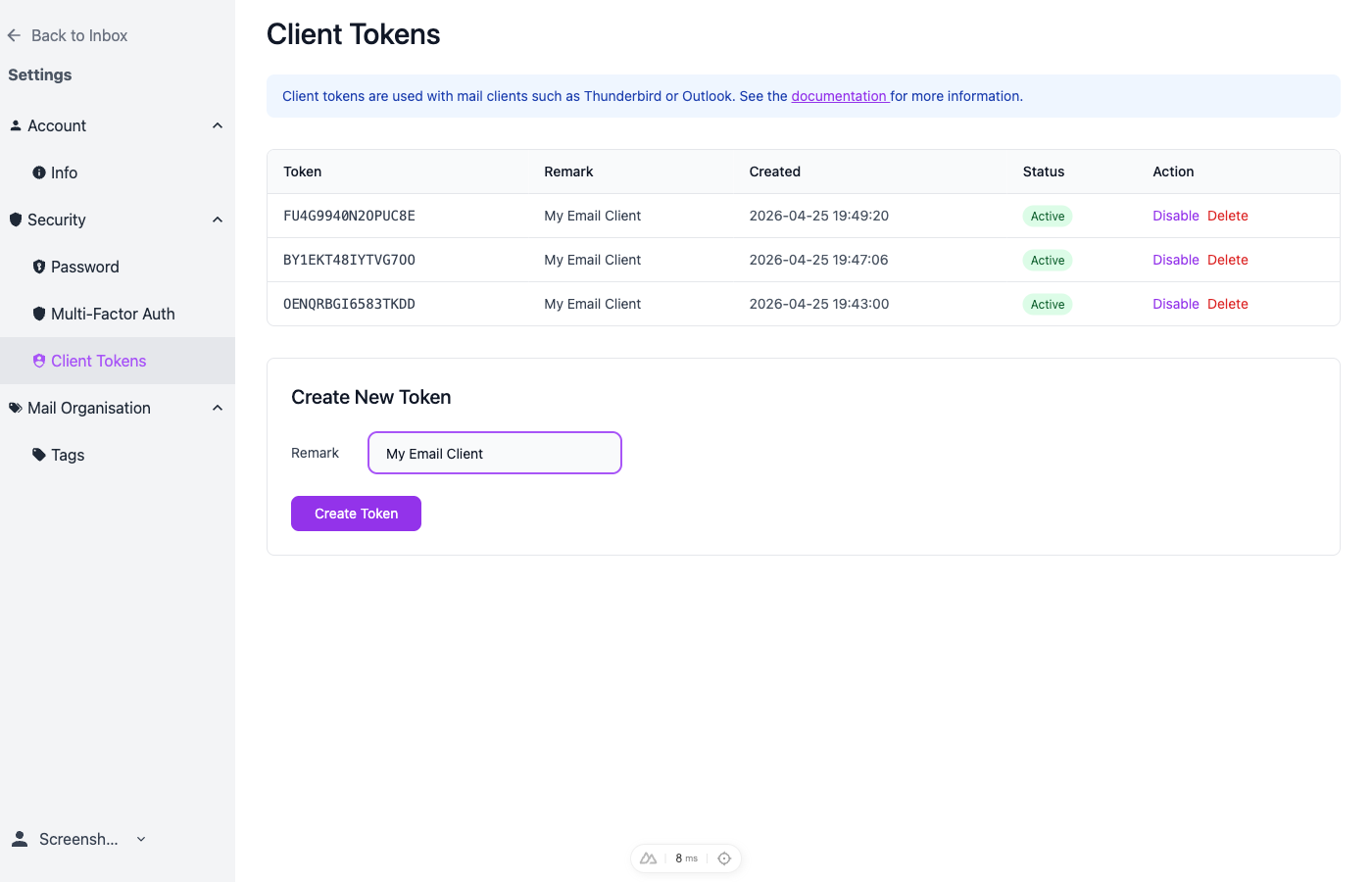 Screenshot: Creating a new token with descriptive name “My Email Client”
- Click Create Token
- Enter a descriptive name that helps you identify where this token will be used:
-
Copy the Token:
- Click the copy button or select and copy the entire token string
- Store it securely (password manager recommended)